 WeCult App
How to Export Your TV Time Data Before It Shuts Down
TV Time is shutting down, and once it does your years of episode history could be gone for good. Here's how to export your TV Time data now and move it into a new app without losing your progress.
TV Time is closing down, and when a service shuts off its servers, the data on them usually goes with it. If you've spent years marking episodes, rating shows and building a watch history, now is the time to save it — before it disappears. This short guide walks you through exporting your TV Time data and moving it into a new tracker.
Why you need to act now
Once TV Time goes offline, there is typically no way to recover your history. Exporting takes a few minutes today, but becomes impossible after the shutdown date. Do it now, even if you haven't decided which app you're switching to yet — you can always import the file later.
Step 1: Request your TV Time data export
Open the TV Time app or website and go to your account or profile settings. Look for an option like "Download your data", "Export data" or a privacy/data section — most services offer this to comply with data-protection rules. If you can't find it, contact TV Time support and request a copy of your data before the shutdown date. The export usually arrives as a downloadable file (often a ZIP) containing your shows, episode progress and ratings.
Step 2: Save the file somewhere safe
When you receive the export, download it to your phone or computer and keep a copy somewhere you won't lose it — cloud storage or email to yourself works well. Don't rely on the TV Time app still being there tomorrow.
Step 3: Choose where to move your history
Decide which tracker fits how you actually watch. If you only track TV and movies, apps like Simkl or Serializd work well. If you also read or game, an all-in-one that keeps everything in one library is worth considering. The key thing to check is that your new app can import a TV Time file so you don't start from zero.
Step 4: Import your data into your new app
In an all-in-one like Wecult, importing is built in: open the app, go to Profile → Settings → Import, choose TV Time, and upload the file you exported. Your watched episodes and ratings are restored, titles you've already added are skipped automatically, and your existing ratings won't be overwritten — so nothing is lost or duplicated. Wecult can also import from Letterboxd, Goodreads and Steam, so this is a good moment to bring your film, book and game history together too.
What gets preserved
- Your watched episodes and season/episode progress
- Your ratings and scores
- The shows on your list, so you can pick up where you left off
Do it now, not later
The single most important step is Step 1. Export your TV Time data today while the service is still online — you can decide on your new app afterwards, but you can't get your history back once the servers are gone.
A service shutdown makes data portability urgent: the users who act before the servers go offline keep their history, while those who wait lose it permanently.


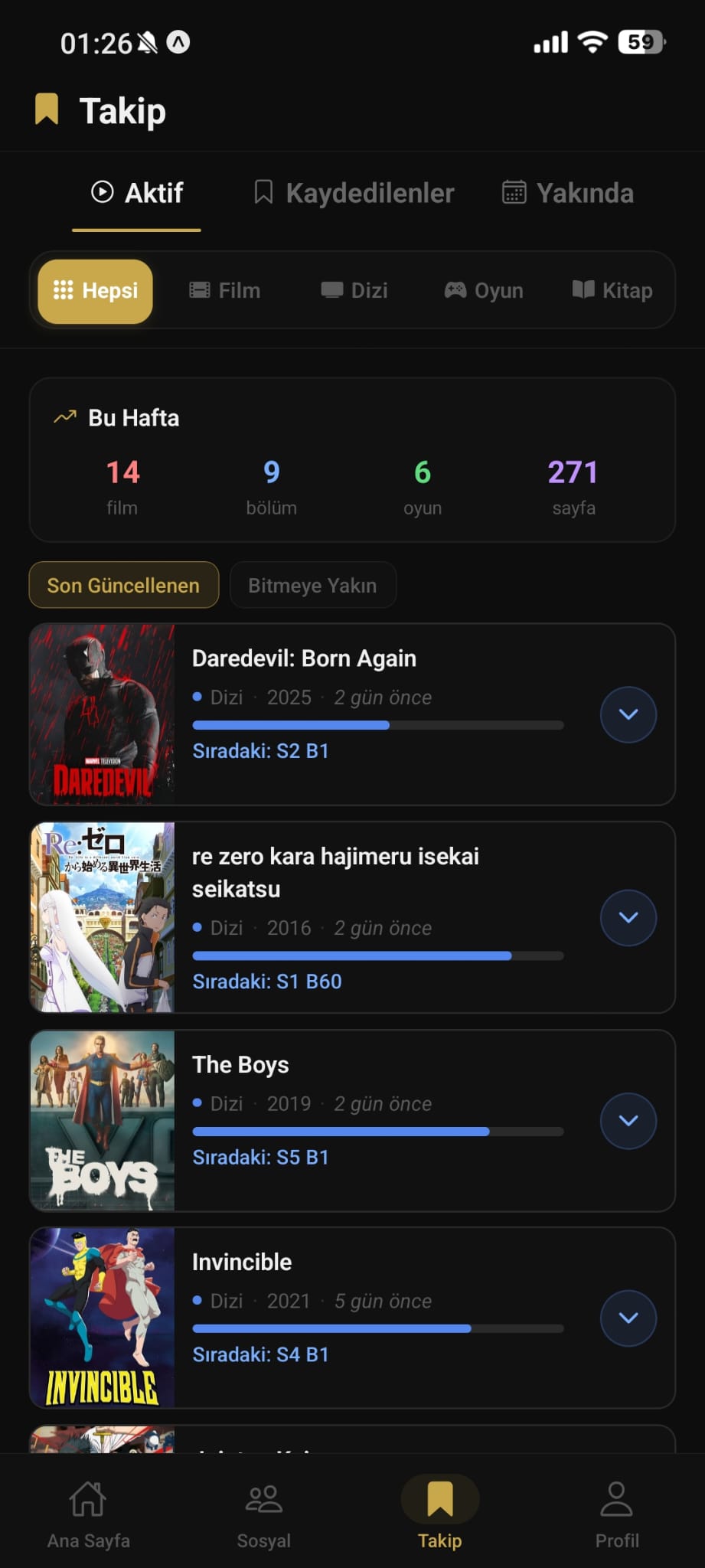

WeCult App
Track your series — all in one place
Follow releases, track progress, discover what matches your taste. Rate "How to Export Your TV Time Data Before I…" on the app.
More Like This

The 7 Best TV Time Alternatives in 2026
TV Time is shutting down, leaving millions looking for a new home for their show tracking. Here are the seven best alternatives in 2026 — ranked by what they track, whether they import your history, and price.

Guillermo del Toro Worries About World's Future, Praises Spooky New Series
The acclaimed filmmaker Guillermo del Toro has voiced profound concerns about intergenerational responsibility, lamenting the state of the world being passed down. Amidst these somber reflections, he also found time to enthusiastically recommend a new streaming series.

Criminal Minds Star Paget Brewster Finally Gives Voice to Obscure Disney Character
Paget Brewster, known for her intense role on Criminal Minds, has lent her voice to a surprisingly significant, yet long-overlooked, Disney character. This marks a major moment for a figure previously confined to animation's footnotes.